Security Scanning
Overview
Docker Registry UI includes built-in vulnerability scanning powered by Trivy, providing comprehensive security analysis of your container images.Quick Start with Trivy
Docker Registry UI integrates with Trivy for vulnerability scanning. You can use the built-in Trivy binary inside the UI container, or connect to a remote Trivy server for better concurrency.Scanning Images
Navigate to the repository Find the tag you want to scan Click the "Scan" button (shield icon 🛡️) next to the tag The scan is queued and runs asynchronously The UI polls for status and displays vulnerability badges when completeScanner Modes
Built-in Trivy (scannerUrl: "builtin")
Trivy binary runs inside the UI container
Scans are serialized with a file lock to protect the shared Trivy cache
Mount /root/.cache/trivy to persist the vulnerability database
Simplest setup for single-container deployments
aquasec/trivy:latest as a separate server
Point vulnerabilityScan.scannerUrl to http://trivy-server:8080
Scans can run concurrently across UI workers
Recommended for production and high scan volume
What Trivy Detects
OS Packages: Alpine, RHEL, CentOS, Ubuntu, Debian, Amazon Linux, etc. Application Dependencies: npm, pip, gem, composer, maven, etc. Known CVEs: From National Vulnerability Database and other sources Severity Levels: Critical, High, Medium, Low, UnknownVulnerability Display
Scan results are displayed as color-coded badges: Critical: Red badge - Immediate action required High: Orange badge - High priority fixes Medium: Yellow badge - Medium priority Low: Blue badge - Low priority Unknown: Gray badge - Severity not determinedCVE Details
Click on any vulnerability badge to view detailed information: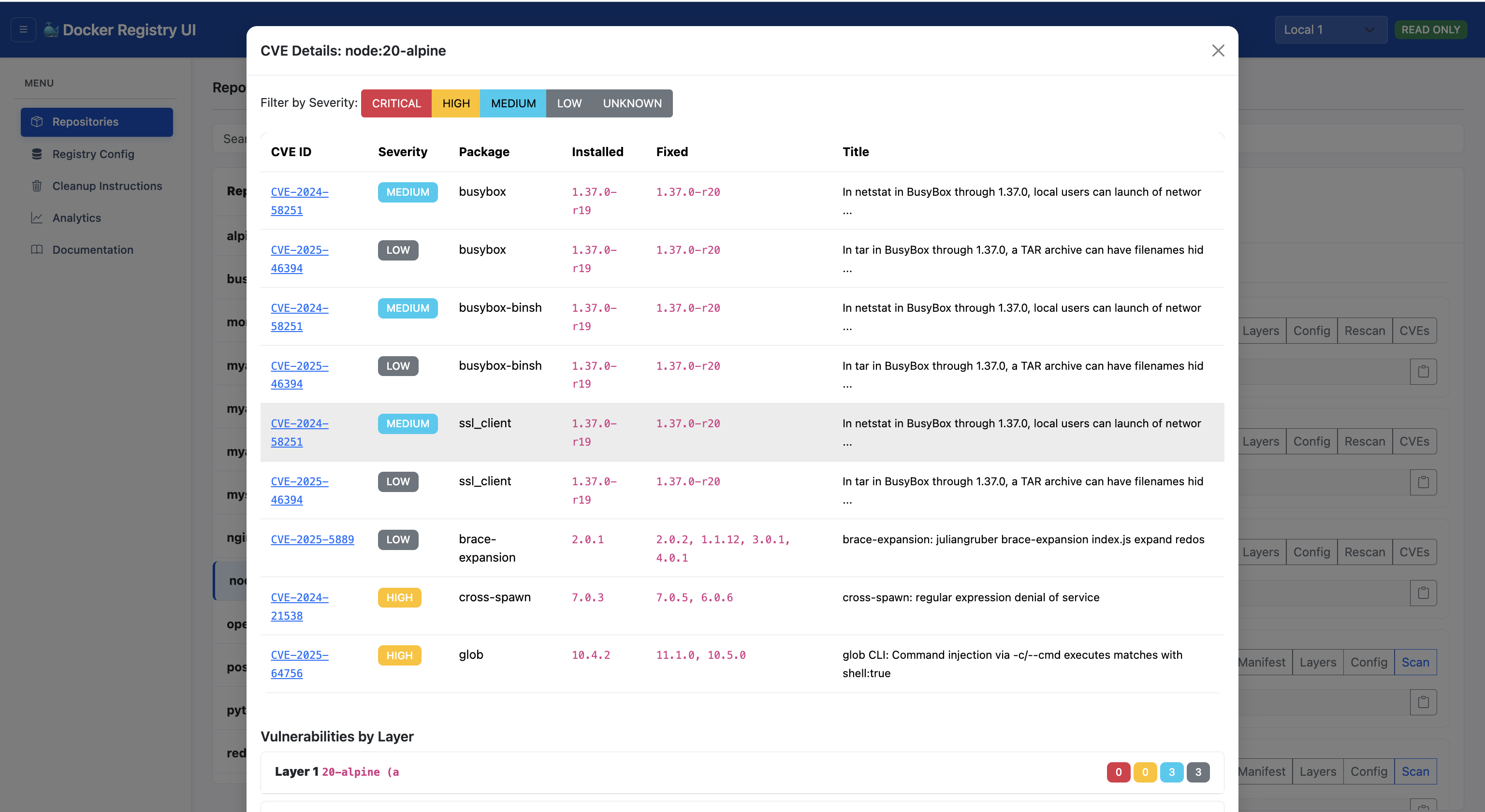 CVE ID: Clickable link to National Vulnerability Database
Package: Affected package name and version
Severity: Vulnerability severity level
Fixed Version: Version that fixes the vulnerability
Description: Detailed vulnerability description
Layer: Which image layer introduced the vulnerability
CVE ID: Clickable link to National Vulnerability Database
Package: Affected package name and version
Severity: Vulnerability severity level
Fixed Version: Version that fixes the vulnerability
Description: Detailed vulnerability description
Layer: Which image layer introduced the vulnerability
Layer-by-Layer Analysis
View which layer introduced each vulnerability: Click "View Layers" for any tag See vulnerability counts per layer Identify which Dockerfile commands introduced vulnerabilities Optimize your Dockerfile to reduce vulnerabilitiesScan Results Storage
Scan results are persisted to disk: Stored under the directory configured byDATA_DIR (default /app/data). Mount this directory to persist scan results across container restarts.
One JSON file per image tag. Filenames use the pattern <repo_with_slashes_replaced_by_underscores>_<tag>.json (e.g. myrepo_subrepo_latest.json).
Results remain available after UI restart
Re-scanning overwrites previous results
Troubleshooting
Scanner Not Responding
For built-in mode: verifytrivy --version runs inside the UI container
For remote mode: verify the Trivy server /healthz endpoint is reachable
Check network connectivity to registry and Trivy server
Verify image exists and is accessible
Check container logs for errors
Scan Takes Too Long
First scan downloads vulnerability database (slower) Subsequent scans use cached database (faster) Large images take longer to scan Network speed affects download timeBest Practices
Scan Regularly: New vulnerabilities are discovered daily Fix Critical First: Prioritize critical and high severity issues Update Base Images: Use latest stable base images Minimize Layers: Fewer layers = smaller attack surface Remove Unnecessary Packages: Only install what you need Use Specific Versions: Avoidlatest tags in production
Persist Trivy Database: Mount TRIVY_CACHE_DIR (default /root/.cache/trivy) to avoid re-downloading the vulnerability DB on every restart